Gaming TV Settings: The 7-Step Guide to Crush the Competition
Published: 11 Nov 2025
Gaming Tv Settings:-
You’re in the middle of an intense firefight. You see the enemy, you pull the trigger, but you’re already dead. That split-second delay-that frustrating feeling of your controller not responding instantly-is often your TV’s fault, not your skills. This is where mastering gaming tv settings becomes your secret weapon. It’s not the same as optimizing for movie night-that’s like tuning a family sedan for a comfortable cruise versus modifying a race car for maximum performance.
Think of movie settings as creating a beautiful, cinematic experience, while gaming settings are about raw speed, responsiveness, and gaining every possible advantage. Our guide will transform your living room TV from a sluggish display into a competitive gaming monitor, shaving off crucial milliseconds and making sure you see enemies before they see you.
To view more about Gaming Tv click here
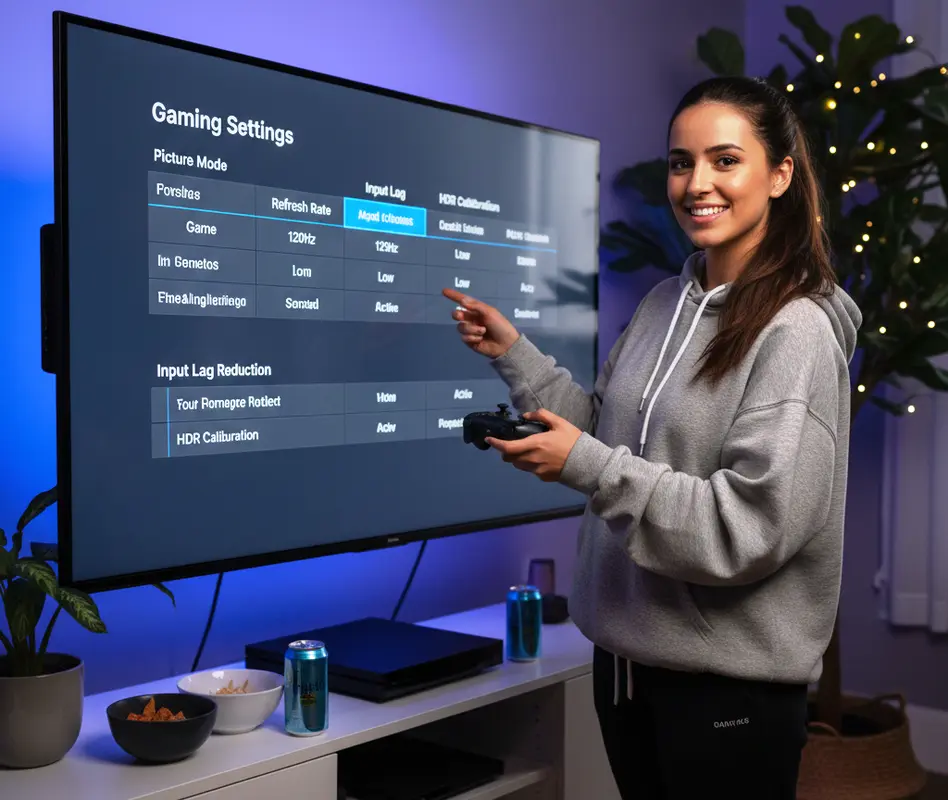
Why Gaming Settings Are Different From Movie Settings
Gaming demands a completely different approach than watching movies or TV shows, and understanding this difference is crucial.
- Gaming tv settings prioritize speed and responsiveness over cinematic beauty, focusing on reducing input lag above all else.
- They enhance competitive visibility by making sure you can spot enemies in dark corners and react to fast movement without motion blur.
- The goal is to create a direct connection between your reflexes and the screen, eliminating any processing that creates delay.
The Gamer’s Mindset: Performance Over Polish
• Input Lag is Enemy Number One
This is the delay between pressing a button on your controller and seeing the action on screen.
Every millisecond counts in competitive gaming, where reactions determine wins and losses.
Gaming modes sacrifice picture processing specifically to minimize this critical delay.
• Motion Clarity is Essential
Fast-paced games require clear, sharp images during quick turns and rapid movement.
Excessive motion blur can make it impossible to track enemies or spot details while moving.
The right settings keep the image crisp and readable during the most chaotic action.
• Visibility Trumps Realism
In competitive gaming, seeing an enemy hiding in shadows is more important than perfect color accuracy.
You might slightly crush black levels to darken hiding spots or boost contrast to make targets stand out.
The goal is an advantage, not necessarily the most beautiful picture.
• Consistency Builds Muscle Memory
Your settings should remain consistent across different games and sessions.
When the image and response time are predictable, your brain builds better muscle memory.
Changing settings constantly can disrupt your timing and aiming precision.
• HDR for Impact, Not Accuracy
HDR in games is about making explosions pop and bright skies dazzle, not color accuracy.
You want to leverage your TV’s peak brightness for visual impact in supported games.
Unlike movies, game HDR is often about the “wow” factor that enhances immersion.
• The Sound of Victory
While primarily about picture, audio settings can provide crucial gameplay cues.
Hearing footsteps directionally or detecting subtle audio hints can give you a tactical edge.
An immersive audio setup complements your visual optimization perfectly.
• Comfort for Long Sessions
Gaming settings should be comfortable for your eyes during multi-hour gaming sessions.
Overly bright screens or excessive blue light can cause eye strain and fatigue.
The best settings balance performance with long-term viewing comfort.
• Game Genre Matters
The optimal settings for a fast-paced shooter differ from those for a story-driven RPG.
Competitive games need maximum performance, while cinematic games can use more enhancement.
Smart gamers create different profiles for different types of games.
• Hardware Synergy
Your TV settings should work in harmony with your console or gaming PC’s capabilities.
Mismatched settings can cause issues like washed-out colors or incorrect HDR performance.
The chain from input to display needs to be properly configured end-to-end.
• The Competitive Edge
Ultimately, gaming settings are about gaining any possible advantage over your opponents.
When equally skilled players compete, the better optimized display often wins.
Your settings are part of your gear, just like your controller or gaming mouse.
Essential Gaming Features to Look For in a TV
Before we dive into settings, it’s important to understand what makes a TV great for gaming.
- Certain hardware specifications are non-negotiable for serious gaming and can’t be fixed with software settings.
- Understanding these key features helps you choose the right TV and maximize its gaming potential.
- Even if you already own a TV, knowing its capabilities and limitations helps set realistic expectations.
Must-Have Gaming TV Specifications
• HDMI 2.1: The New Standard for gaming tv settings
This is essential for 4K gaming at 120Hz on PS5 and Xbox Series X.
It provides the bandwidth needed for high frame rates and advanced features like VRR.
Without HDMI 2.1, you’re limited to 4K 60Hz or 1440p 120Hz on next-gen consoles.
• 120Hz Refresh Rate: Buttery Smooth Gameplay
A 120Hz panel displays up to 120 frames per second, doubling the smoothness of 60Hz.
This reduces motion blur and makes aiming feel more responsive and precise.
While not all games support 120fps, the ones that do provide a significant competitive advantage.
• Variable Refresh Rate (VRT): No More Screen Tearing
VRR synchronizes your TV’s refresh rate with your console’s frame rate output.
This eliminates screen tearing and stuttering without adding input lag.
It’s especially valuable when frame rates fluctuate during demanding game scenes.
• Auto Low Latency Mode (ALLM): Automatic Game Mode
This feature automatically switches your TV to game mode when it detects a gaming signal.
You don’t have to remember to enable game mode for each gaming session.
It ensures you’re always getting the lowest input lag possible.
• Low Input Lag: The Magic Number
Input lag of 15ms or less is ideal for competitive gaming, while under 30ms is good for casual play.
Game mode typically reduces input lag from 50-100ms down to 10-20ms.
This single setting makes the biggest difference in how responsive games feel.
• HDR Performance: Brightness Matters
Look for TVs with high peak brightness (800+ nits) for impactful HDR gaming.
Good HDR makes games more immersive and can help with visibility in bright scenes.
Dolby Vision gaming support is becoming more common and provides superior HDR.
• Response Time: Pixel Speed
This measures how quickly pixels can change color, different from input lag.
Faster response times reduce motion blur and ghosting behind moving objects.
OLED TVs excel here with near-instant response times, while LED TVs vary.
• Screen Size and Viewing Distance
Larger screens aren’t always better—they can require more eye movement during gameplay.
The ideal size depends on your viewing distance and personal preference.
Many competitive gamers prefer 55″ or smaller for easier full-screen visibility.
• Panel Type: OLED vs LED for gaming tv settings
OLED offers perfect blacks, incredible contrast, and instant response times.
High-end LED TVs with full-array local dimming get close to OLED contrast with more brightness.
Both can be excellent for gaming, with different strengths and trade-offs.
• Future-Proofing Considerations
HDMI 2.1, 4K 120Hz, and VRR are the key features that will remain relevant for years.
Investing in these technologies ensures your TV will handle next-generation gaming.
Skip TVs that lack these features if gaming is a primary use case.
Enabling Your TV’s Gaming Features
The first step is activating the specialized gaming features your TV offers.
- You need to locate and enable key technologies like HDMI 2.1, Game Mode, and VRR in your gaming tv settings.
- Some features require specific HDMI ports or additional configuration to work properly.
- Understanding how these features interact ensures you’re getting the full gaming performance you paid for.
Activating Core Gaming Technologies
• Enable Game Mode/Game Optimizer
This is the single most important setting for reducing input lag.
Find it in your picture settings menu—it’s often called Game Mode, Game, or Game Optimizer.
This setting disables most picture processing to minimize delay between input and display.
• Switch to HDMI 2.1 Mode
Some TVs require you to enable HDMI 2.1 features on specific ports.
Look for settings like “HDMI Deep Color,” “Enhanced Format,” or “Ultra HD Deep Color.”
Enable this on the HDMI ports you use for gaming to unlock full bandwidth capabilities.
• Activate Variable Refresh Rate
VRR might be found in different menus depending on your TV brand.
Check both general settings and specific gaming or picture menus for VRR options.
Enable this along with Game Mode for the smoothest, tear-free gaming experience.
• Configure Auto Low Latency Mode
Ensure ALLM is enabled so your TV automatically switches to game mode.
This is usually in the same menu as other gaming-related features.
When working properly, your TV should automatically detect gaming content and optimize settings.
• Select the Right HDMI Port for gaming tv settings
Many TVs only have specific HDMI 2.1 ports—usually HDMI 1 and 2.
Check your manual to identify which ports support full 4K 120Hz and VRR.
Using the wrong port can limit your performance and feature availability.
• Update Your TV’s Firmware
Manufacturers frequently improve gaming performance through software updates.
Check for the latest firmware in your TV’s settings menu and install if available.
Many gaming features have been added or improved via updates on recent TV models.
• Configure Console Settings
Enable 120Hz output, VRR, and HDR in your PlayStation or Xbox display settings.
The console and TV need to be configured properly for features to work together.
Use your console’s built-in calibration tools for optimal HDR and color settings.
• Test Feature Compatibility
Use your console’s display information to verify which features are active.
The Xbox has a detailed 4K TV details screen that shows exactly what’s enabled.
This helps troubleshoot when features aren’t working as expected.
• Adjust Game-Specific Settings
Some TVs offer game-specific enhancements like black equalizer or crosshair displays.
Experiment with these carefully, as they can sometimes increase input lag.
Use them only if they provide a clear competitive advantage for your play style.
• Create Gaming Profiles
Many TVs allow you to save custom picture settings for game mode.
Create different profiles for competitive shooters, story games, and HDR content.
This lets you quickly switch between optimized settings for different gaming scenarios.
Optimizing Basic Picture Settings for Gaming
Once your gaming features are enabled, it’s time to fine-tune the picture for competitive advantage.
- You need to balance visual quality with performance, finding settings that look good without adding input lag.
- Different game genres benefit from different optimizations—what works for a shooter may not work for an RPG.
- The goal is creating a clear, responsive image that helps you spot enemies and react quickly.
The Competitive Calibration Process
• Set Backlight/OLED Light Appropriately
This controls overall screen brightness-set it based on your room lighting.
For dark rooms, 40-60 is sufficient; for bright rooms, you might need 70-100.
Avoid maximum brightness in dark environments to prevent eye strain during long sessions.
• Adjust Brightness for Shadow Detail
Despite the name, this controls black levels and shadow detail in dark areas.
Increase until you can see details in dark corners and shadows, then back off slightly.
Proper brightness ensures you can spot enemies hiding in dark areas without washing out blacks.
• Configure Contrast for Visibility
This controls white levels and the overall punch of bright areas.
Set it high enough that bright areas have impact but not so high that details are lost.
Good contrast makes enemies stand out against backgrounds and environments.
• Manage Color/Saturation Carefully
Oversaturated colors can make the image pop but may reduce visibility of important details.
Start with neutral colors around 50 and adjust based on the game’s art style.
Some competitive gamers slightly reduce saturation to make enemy outlines clearer.
• Set Sharpness Minimally
High sharpness settings add artificial edge enhancement that can create noise.
For gaming, set sharpness very low—usually between 0-20 depending on the TV.
This provides a clean image without false details that might distract during gameplay.
• Choose Color Temperature
“Warm” settings are more accurate, but “Cool” or “Standard” might provide better visibility.
Cooler temperatures can make certain elements stand out more in competitive games.
Experiment to see which helps you spot targets faster without causing eye strain.
• Disable Motion Smoothing Completely
This feature is terrible for gaming as it adds significant input lag and creates artifacts.
Ensure any form of motion interpolation or smoothing is completely turned off.
This is usually automatically disabled in game mode, but double-check to be sure.
• Configure Local Dimming
For LED TVs, set local dimming to high for the best contrast in dark scenes.
This improves visibility in dark areas and makes bright HDR elements pop.
Some gamers prefer medium settings to reduce blooming around bright UI elements.
• Set Black Level Correctly
“Low” or “Normal” typically works for consoles, while “High” or “Extended” is for PCs.
Mismatched black level settings cause crushed blacks or washed-out images.
Check your console’s black level setting and match it to your TV for optimal results.
• Disable Energy Saving Features
These automatically adjust brightness to save power, creating inconsistent image quality.
The constant brightness changes are distracting and can affect visibility during gameplay.
Turn off all automatic brightness and power saving features for consistent performance.
Advanced gaming tv settings and Features
Modern gaming TVs offer advanced features that can provide a competitive edge when configured properly.
- These specialized gaming tv settings options can enhance visibility, provide information, or improve responsiveness.
- You need to understand the trade-offs of each feature, as some may impact performance or input lag.
- Experimenting with these advanced controls can help you find settings that work for your specific games and play style.
Expert-Level Gaming Optimizations
• Black Equalizer/Black Stabilizer
This feature brightens dark areas without affecting brighter parts of the image.
It can reveal enemies hiding in shadows that would normally be too dark to see.
Use it carefully, as setting it too high can create a washed-out, unnatural look.
• Crosshair Display for gaming tv settings
Some gaming TVs can overlay a crosshair in the center of the screen.
This helps with games that have poor default crosshairs or no crosshair at all.
It’s particularly useful in shooters where precise aiming is critical.
• Low Blue Light Mode for gaming tv settings
Reduces blue light emission to minimize eye strain during long gaming sessions.
This can make the image appear warmer but is easier on your eyes over time.
Consider enabling this for multi-hour gaming marathons to reduce fatigue.
• FreeSync Premium/G-SYNC Compatibility
These are advanced forms of VRR with additional features like low framerate compensation.
They provide smoother gameplay when frame rates drop below the display’s refresh rate.
Enable these if your TV and gaming system support them for the best VRR experience.
• Response Time Settings
Some TVs allow you to adjust pixel response time to reduce motion blur.
Faster settings reduce blur but can cause inverse ghosting or coronas behind moving objects.
Find the fastest setting that doesn’t create visible artifacts in your games.
• HDR Tone Mapping for gaming tv settings
This controls how HDR content is mapped to your TV’s specific brightness capabilities.
“Active” or “Dynamic” tone mapping can preserve more highlight details in bright HDR scenes.
“Static” or “Off” provides a more accurate but sometimes less impactful HDR image.
• Input Lag Preview for gaming tv settings
A few high-end TVs can display real-time input lag measurements.
This helps you understand exactly how different settings affect responsiveness.
Use this feature to fine-tune your settings for the absolute lowest input lag.
• Game Motion Plus Settings
Samsung’s feature that adds some motion enhancement without as much input lag as standard smoothing.
It can make 30fps games look smoother but may not be suitable for competitive gaming.
Use this only for single-player games where smoothness is more important than absolute responsiveness.
• FPS Counter Display for gaming tv settings
Some gaming modes can show a real-time frames-per-second counter.
This helps you monitor performance and identify when frame rates are dropping.
It’s useful for optimizing game settings to maintain smooth performance.
• Game-Specific Picture Profiles
Many modern TVs can automatically apply optimized settings for popular games.
These presets are tuned by developers or experts for specific titles.
Try them out, but don’t be afraid to customize further based on your preferences.
Console-Specific Optimization Tips
Different gaming systems have unique features and requirements that affect your optimal for gaming tv settings.
- Each console generation has specific capabilities that need matching for gaming tv settings to perform optimally.
- Understanding platform-specific features helps you get the most from your PlayStation, Xbox, or Nintendo system.
- Proper console-level configuration works together with your TV settings for the best gaming experience.
Platform-Specific Configuration
• PlayStation 5 Optimization
Enable 120Hz Output, VRR, and HDR in the PS5’s screen and video settings.
Use the console’s HDR calibration tool to properly set brightness for your specific TV.
For supported games, choose Performance Mode to prioritize frame rate over resolution.
• Xbox Series X|S Setup
Enable 4K, 120Hz, VRR, and HDR in the Xbox’s TV & display options.
Use the advanced color calibration and HDR calibration tools in the Xbox settings.
The “Allow 4:2:2” setting can help with HDR compatibility on some displays.
• Nintendo Switch Considerations
The Switch outputs at 1080p docked, so ensure your TV’s sharpness isn’t set too high.
Enable Game Mode specifically for the Switch’s input to reduce input lag.
For OLED Switch models, match your TV’s color temperature to the Switch’s vibrant screen.
• Gaming PC Connections
PCs offer more flexibility but require more careful configuration than consoles.
Set your PC to output native resolution and refresh rate matching your TV’s capabilities.
Use RGB full range color output and match your TV’s black level setting accordingly.
• Cross-Platform Settings
Create separate picture profiles for each console if your TV allows input-specific settings.
This ensures each system gets optimized settings for its specific capabilities and output.
Label them clearly so you know which profile is active for each gaming session.
• HDR Calibration per Console
Each console has its own HDR calibration process—complete it for each system.
Proper HDR calibration ensures bright highlights are visible without being blown out.
Re-calibrate if you change TV settings or move your console to a different display.
• Audio Configuration for gaming tv settings
Enable Dolby Atmos or Tempest 3D Audio if your TV or sound system supports it.
Proper spatial audio can provide competitive advantages in positional awareness.
Adjust audio balance to emphasize important game sounds like footsteps and reloads.
• Controller Settings Synergy
Some TVs offer settings that work with specific controller features.
The PS5’s DualSense haptics and adaptive triggers can be complemented by certain picture modes.
Consider how your display settings enhance the overall controller experience.
• Streaming and Recording
If you stream gameplay, you might need different settings for broadcast quality versus personal play.
Higher brightness and saturation can make gameplay more visible for viewers.
Create separate streaming profiles if your capture setup affects input lag.
• Future Updates and Features about gaming tv settings
Consoles frequently add new display features through system updates.
Regularly check for new options that might improve your gaming experience.
Stay informed about upcoming features that might require TV firmware updates.
Game Genre-Specific Settings
Different types of games benefit from different visual optimizations and performance priorities.
- Competitive games demand maximum performance with minimal visual enhancement for the fastest response.
- Story-driven games can use more enhancement since visual quality and immersion are more important.
- Understanding genre-specific optimizations helps you create the perfect experience for each game type.
Tailoring Settings to Game Types
• First-Person Shooters (Competitive)
Prioritize performance mode, maximum refresh rate, and lowest input lag above all else.
Slightly reduce motion blur and increase contrast to make enemies stand out.
Use neutral color settings to maintain visibility without artificial enhancement.
• Racing and Sports Games
Enable the highest motion clarity settings your TV offers without adding significant input lag.
These games benefit from smooth motion and clear details during high-speed movement.
HDR is particularly impactful for making tracks and fields look vibrant and realistic.
• Role-Playing Games (Story-Focused)
You can use enhanced picture quality settings since input lag is less critical.
Enable deeper color saturation and better contrast for more immersive worlds.
HDR implementation in RPGs often focuses on creating atmospheric lighting and environments.
• Horror and Survival Games
Optimize for deep black levels and shadow detail to see in dark environments without losing atmosphere.
Good HDR can make flashlight beams and light sources more impactful and realistic.
Audio settings are particularly important for atmospheric horror games.
• Fighting Games
These require extremely low input lag and clear motion during fast animations.
Enable the highest refresh rate possible and disable all processing that adds delay.
Good netcode is more important than display settings for online fighting games.
• Real-Time Strategy Games
Text and UI clarity is crucial for reading small text and interface elements.
Slightly increased sharpness can help with readability without creating significant artifacts.
Isometric perspectives benefit from good contrast and color differentiation between units.
• Open World Exploration Games
These benefit from the best possible image quality and HDR implementation.
You can enable more picture enhancement since precise timing is less critical than immersion.
Take time to properly calibrate HDR for the most breathtaking vistas and environments.
• Esports and Competitive Multiplayer
Use the most aggressive performance settings—every millisecond of input lag matters.
Reduce any visual effects that might distract from core gameplay elements.
Many professional players use slightly different settings than recommended for consumers.
• Virtual Reality Preparation
While not directly on your TV, VR games can benefit from similar optimization principles.
Low persistence displays and high refresh rates are even more important in VR.
The skills you learn optimizing flat gaming translate to understanding VR display requirements.
• Retro and Emulated Games
These often require different settings to properly display older content.
Integer scaling and proper aspect ratio settings are more important than performance.
CRT filters and scanline simulation can enhance the authenticity of retro gaming.
Conclusion: Dominate with Optimized gaming TV settings
Perfecting your gaming TV settings transforms your display from a passive viewing device into an active competitive tool.
- Remember that optimal settings are personal—use our guide as a starting point and adjust based on your preferences.
- Don’t be afraid to experiment with different configurations for different games and lighting conditions.
- Your skills and settings work together—the best settings can’t replace practice, but they ensure your hardware isn’t holding you back.
The difference between default gaming tv settings and a properly optimized gaming configuration is like night and day. You’ll feel the improved responsiveness in your controller, see enemies more clearly in dark corners, and experience smoother motion during fast action. Most importantly, you’ll eliminate that frustrating feeling of your equipment working against you. Now grab your controller, apply these settings, and experience gaming the way it was meant to be—responsive, immersive, and completely under your control.
FAQ’s for gaming tv settings
Yes, Game Mode typically reduces input lag from 50-100ms down to 10-20ms, which is a huge difference in responsiveness. This reduction can be the difference between winning and losing in competitive gaming situations. Always enable Game Mode when gaming, as the improved responsiveness far outweighs any minor picture quality reduction.
Absolutely, if your TV and game support it properly. HDR gaming provides better contrast, more vibrant colors, and more realistic lighting that can enhance immersion. Make sure to use your console’s HDR calibration tool and enable HDR in both your TV and game settings for the best experience.
Game Mode disables most picture processing to reduce input lag, which can make the image look less polished initially. Your eyes will adjust to the more natural image, and the improved responsiveness is worth the trade-off. You can usually fine-tune picture settings within Game Mode to improve the appearance without adding significant lag.
OLED TVs have faster response times and perfect blacks, while high-end LED TVs can get brighter for HDR. Both are excellent for gaming, with OLED having an edge in responsiveness and LED often being better for bright rooms. Choose based on your gaming environment and whether you prioritize perfect blacks or maximum brightness.
Very important for supported games, as it doubles the smoothness of 60Hz and reduces motion blur. The difference is most noticeable in fast-paced games like shooters and racing games. Even if you’re not always hitting 120fps, having a 120Hz display improves motion clarity and reduces input lag.
Never enable motion smoothing for gaming—it adds significant input lag and creates visual artifacts. Game Mode automatically disables this feature because it’s detrimental to gaming performance. The artificial frames it creates can actually make aiming and timing more difficult.
You need both a compatible source (PS5/Xbox Series X|S/ gaming PC) and a TV with HDMI 2.1 ports. Ensure you’re using the correct HDMI port, have enabled enhanced HDMI features, and are using a certified Ultra High Speed HDMI cable. Also check your console or PC settings to enable 120Hz output.
Larger screens can require more eye movement to see the entire playing field, which some competitive players find disadvantageous. Many professional gamers prefer 24-27 inch monitors for full visibility without excessive eye movement. For casual gaming, choose whatever size feels comfortable in your viewing environment.
Enable blue light reduction features, avoid gaming in complete darkness, and lower your backlight setting to comfortable levels. Take regular breaks using the 20-20-20 rule: every 20 minutes, look at something 20 feet away for 20 seconds. Proper room lighting is more important than screen brightness for reducing eye fatigue.
These presets can be good starting points, but don’t be afraid to customize them further. Game-specific modes are often tuned by the developers to match their artistic vision for the game. Try the preset first, then adjust individual settings like brightness and contrast to suit your preferences and viewing environment.






- Be Respectful
- Stay Relevant
- Stay Positive
- True Feedback
- Encourage Discussion
- Avoid Spamming
- No Fake News
- Don't Copy-Paste
- No Personal Attacks
- Be Respectful
- Stay Relevant
- Stay Positive
- True Feedback
- Encourage Discussion
- Avoid Spamming
- No Fake News
- Don't Copy-Paste
- No Personal Attacks
