LED TV Settings for Movies: The 7-Step Cinema Quality Guide
Published: 31 Oct 2025
LED TV Settings for Movies: The 7-Step Cinema Quality Guide
You’ve settled in for movie night with your favorite film, but something’s wrong. The colors look off, the dark scenes are a murky gray mess, and the whole picture has that weird, overly-smooth “soap opera” look that just doesn’t feel cinematic. You’re not getting the theater experience you paid for. This is where mastering LED picture settings for movies becomes your ultimate home cinema hack.
It’s not the same as just using your TV’s standard or sports settings—that’s like using a blender to chop vegetables when you need a chef’s knife. Think of general settings as a blunt instrument, while movie-specific calibration is a precision tool designed to honor every director’s creative vision. Our guide will help you unlock that cinematic magic, transforming your living room into a personal theater that does justice to the art of filmmaking.
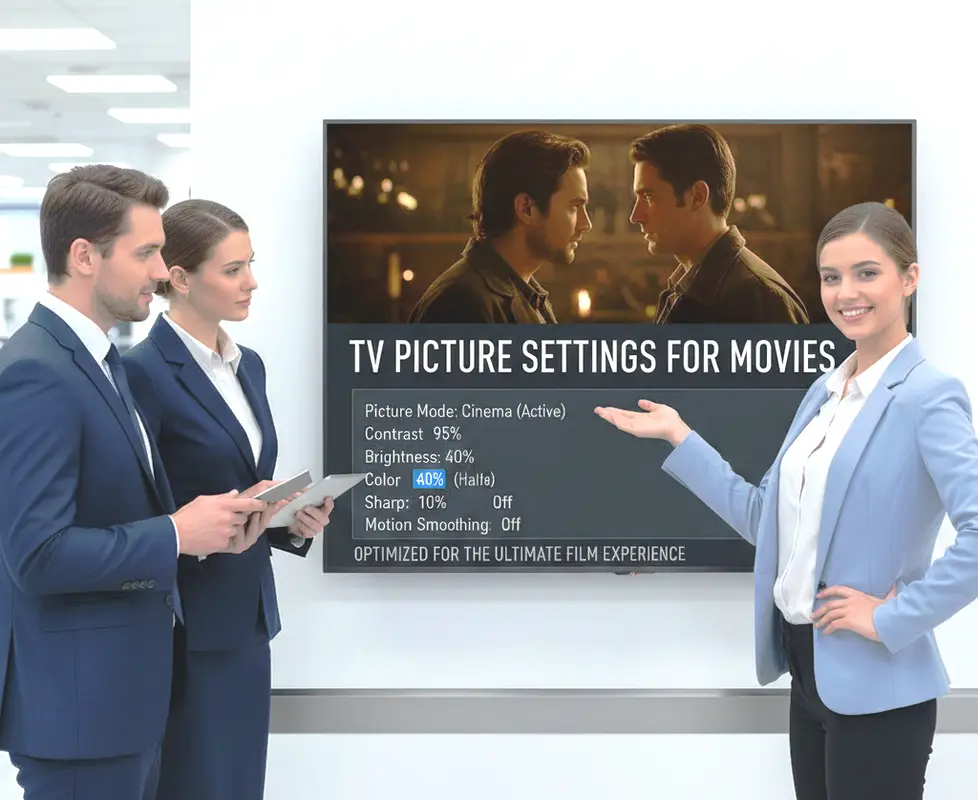
Why LED TV Settings for Movies Differ from Regular TV Viewing
Watching a film is a completely different experience from catching the nightly news or a football game, and your TV settings should reflect that.
- Movie settings prioritize director’s intent and color accuracy over the artificial pop that works for sports or game shows.
- They aim to replicate the darkened environment of a cinema, which requires different brightness and contrast levels than a bright living room.
- Proper film settings preserve the unique motion and frame rate of 24fps content, giving you that authentic cinematic “judder” our brains expect from movies.
The Philosophy Behind Cinematic Picture Quality
• Color Accuracy Over Vibrancy for LED TV Settings for Movies
Movies are color-graded by professionals to create specific moods and atmospheres.
Your goal is to see the colors as the director intended, not to make them as bright as possible.
Accurate colors make skin tones look natural and environments feel real.
• The Importance of Deep Blacks for LED TV Settings for Movies
In a dark room, true black levels are what create depth and make the image feel three-dimensional.
LED TVs struggle with this, which is why local dimming settings are crucial for movie watching.
Great black levels make the difference between a flat image and one that has real “pop.”
• Natural Motion Handling for LED TV Settings for Movies
Films are shot at 24 frames per second, which creates a slight motion blur our brains recognize as cinematic.
Motion smoothing (the “soap opera effect”) destroys this by adding artificial frames.
For authentic film viewing, you want to see the natural 24fps motion, not hyper-real smoothness.
• Shadow Detail Preservation for LED TV Settings for Movies
A great movie picture reveals details in the shadows, not just pure blackness.
You should be able to see the texture in a dark corridor or the details of a character’s clothing in a night scene.
Crushing everything to black loses the artistry of the cinematography.
• Highlight Detail Matters for LED TV Settings for Movies
Similarly, you want to preserve details in bright areas, not just blinding white light.
You should see the texture in clouds and the subtle variations in bright skies.
Blown-out highlights look cheap and destroy the carefully crafted high dynamic range.
• The Right Amount of Sharpness for LED TV Settings for Movies
Film has a natural softness that digital video often lacks.
Adding too much sharpness creates ugly halos around objects and makes the image look artificial.
A light touch with sharpness preserves the filmic quality without sacrificing detail.
• Warm Color Temperature for LED TV Settings for Movies
Cinema projectors use a warm color temperature that gives whites a slight reddish-yellow tint.
The “Cool” or “Standard” settings on your TV give whites a blueish tint that looks harsh and unnatural.
Warm settings are easier on the eyes and more authentic to the theater experience.
• Reducing Visual Distractions for LED TV Settings for Movies
Movie mode should minimize all processing that wasn’t part of the original film.
This means turning off noise reduction, edge enhancement, and other “improvement” features.
A clean, unprocessed image is what the filmmakers want you to see.
• Consistency Across Scenes for LED TV Settings for Movies
A properly calibrated movie setting looks good throughout the entire film, not just in certain scenes.
The picture shouldn’t constantly change brightness or color based on what’s happening on screen.
Consistency allows you to become immersed in the story without technical distractions.
• The Big Picture Experience for LED TV Settings for Movies
Ultimately, movie settings are about creating an immersive experience that pulls you into the story.
When the technology disappears and you’re just experiencing the film, you’ve achieved the goal.
Every setting we’ll adjust serves this ultimate purpose of storytelling immersion.
Preparing Your Viewing Environment for LED TV Settings for Movies
Before you touch a single setting on your TV, you need to set the stage for proper movie viewing.
- The lighting in your room has a huge impact on how your TV’s picture appears and how your eyes perceive it.
- You need to eliminate reflections and glare that can wash out the image and destroy those precious black levels.
- Creating a consistent viewing position ensures the picture looks its best from your primary seating area.
Setting the Stage for Cinema Night
• Control Your Room Lighting
The ideal movie-watching environment is completely dark, like a commercial theater.
If complete darkness isn’t practical, use dim, indirect lighting behind or to the side of the TV.
Never watch with bright lights or windows directly behind you, as they cause reflections on the screen.
• Manage Window Light
Use blackout curtains or shades to block sunlight during daytime viewing.
Even a little ambient light can significantly reduce perceived contrast and black levels.
For serious movie watching, plan your viewing for after sunset when you have full light control.
• Choose Your Viewing Position
Sit directly in front of the TV, with your eyes at about the same height as the center of the screen.
The ideal distance is about 1.5 to 2.5 times the diagonal screen size of your TV.
This position ensures you see the correct geometry and color without distortion.
• Reduce Screen Reflections
Turn off any lamps or lights that create reflections on your TV screen.
Matte screen finishes help with reflections, but glossy screens need more careful light management.
Even small reflections can be distracting and reduce picture quality during dark scenes.
• Prepare Your Source Material
Use the highest quality source available – 4K Blu-rays offer the best picture quality.
High-bitrate streaming from services like Apple TV+ or Movies Anywhere provides excellent quality.
Avoid heavily compressed sources, as they can’t deliver the full picture quality your TV is capable of.
• Warm Up Your TV
Turn your TV on for at least 10-15 minutes before calibration to let it reach its normal operating temperature.
Picture characteristics, especially on OLEDs, can shift slightly as the panel warms up.
Calibrating a cold TV can lead to settings that don’t look right after extended viewing.
• Clear Your Viewing Line
Make sure you have an unobstructed view of the entire screen from your seating position.
Remove any decorative items, plants, or furniture that might block part of the screen.
You want to see the entire cinematic frame as the director composed it.
• Set the Right Sound Level
While this is about picture, proper audio enhances the cinematic experience.
Set your volume at a comfortable but immersive level before you start adjusting picture settings.
You want to replicate the theater experience where sound and picture work together.
• Gather Your Tools for LED TV Settings for Movies
Have your TV remote handy and make sure you know how to access the picture settings menu.
You might want a notepad or your phone to jot down your original settings as a backup.
Being prepared makes the calibration process smooth and stress-free.
• Mental Preparation for LED TV Settings for Movies
Understand that “accurate” might look different than what you’re used to from store displays.
It might seem slightly dark or warm at first, but your eyes will adjust quickly.
Trust the process – filmmakers create content to be viewed with accurate settings.
Choosing the Perfect Picture Mode
This is the most critical first step – selecting the right foundation for all your other adjustments.
- Your TV’s picture mode sets the baseline for color, contrast, and motion handling before you make any custom adjustments.
- You want to choose a mode that prioritizes accuracy over artificial enhancement for the most authentic film experience.
- Different manufacturers use different names, but the philosophy behind movie-friendly modes is consistent across brands.
Finding Your TV’s Cinema Mode
• Look for “Cinema” or “Movie”
Most manufacturers include a picture mode specifically designed for film content.
These modes are typically the most accurate out-of-the-box settings available.
They’re designed to replicate the color and contrast standards used in film production.
• Filmmaker Mode is Golden
This newer standard automatically disables all motion smoothing and post-processing.
It locks the original aspect ratio and color timing as the filmmakers intended.
If your TV has Filmmaker Mode, this is often the best choice for modern content.
• ISF Modes for Professionals
Some higher-end TVs include ISF (Imaging Science Foundation) day and night modes.
These are designed by professional calibrators and offer excellent starting points.
If available, ISF Night mode is perfect for dark room movie viewing.
• Avoid “Vivid” and “Dynamic”
These modes maximize brightness and saturation for store displays and bright showrooms.
They crush shadow details, blow out highlights, and make skin tones look unnatural.
While they might seem impressive at first, they’re terrible for serious movie watching.
• Custom Mode for Flexibility
If your TV has a Custom or User mode, this can be your blank canvas.
You can build your perfect movie settings from the ground up without factory presets.
This is ideal if you want to follow specific calibration guidelines.
• HDR and Dolby Vision Modes
When playing HDR content, your TV will automatically switch to special HDR modes.
These are usually well-tuned from the factory since HDR is designed for premium content.
You typically can’t select these modes manually – they activate automatically.
• Game Mode Exception
If you’re watching movies through a gaming console, you might need Game Mode for proper playback.
Modern Game Modes are much better at preserving picture quality than older versions.
Some TVs now have a separate “Game Mode Movie” setting for this exact scenario.
• Calibrated Modes for LED TV Settings for Movies
Some brands like Sony have “Netflix Calibrated Mode” or similar streaming-specific settings.
These are optimized for specific content providers and can be excellent choices.
They’re worth trying if available for your preferred streaming service.
• Backup Your Starting Point
Take a picture of your current settings before making any changes.
This gives you a safety net if you want to return to your original configuration.
It’s also helpful for understanding what the factory thought looked good.
• Trust But Verify
Even the best preset modes usually benefit from some fine-tuning.
Use them as your foundation, but don’t be afraid to make small adjustments.
Your specific room and personal preference still matter for the final result.
Adjusting Basic Movie Picture Settings
Now we get to the heart of the calibration – fine-tuning the core controls for optimal movie viewing.
- You need to adjust settings in a specific order because changes to one setting can affect how others appear.
- Work with incremental adjustments rather than large jumps to find the sweet spot for your specific TV.
- Use high-quality movie content you’re familiar with to evaluate the effect of each change.
The Movie Calibration Sequence
• Set Picture Mode First
Start by selecting “Cinema,” “Movie,” or “Filmmaker Mode” as your foundation.
This establishes an accurate baseline for color and contrast before fine-tuning.
Many of the other settings will already be in the right ballpark when you start with these modes.
• Adjust Backlight/OLED Light
This controls how bright the overall image appears – set it based on your room darkness.
For a completely dark room, start around 20-30; for a dim room, try 40-50.
Unlike contrast, this affects the entire image uniformly rather than specific bright areas.
• Configure Brightness Properly
Despite its name, this setting primarily controls black levels and shadow detail.
Find a dark movie scene and increase until you see details in shadows, then back off slightly.
Setting this too high makes blacks look gray; too low loses shadow detail.
• Dial in Contrast for LED TV Settings for Movies
This controls the intensity of white levels and the overall “punch” of bright areas.
Increase until bright areas are vivid but not washed out, then reduce if you lose detail.
Proper contrast makes the image have depth without causing eye strain.
• Manage Color/Saturation
Controls the intensity or vividness of colors in the picture.
Adjust until colors look rich but natural – skin tones shouldn’t look sunburned.
Oversaturated colors look cartoonish, while undersaturated looks dull.
• Set Sharpness Correctly
This is the most misunderstood setting – it doesn’t actually create real detail.
Most modern content looks best with sharpness set very low, often between 0-15.
High sharpness adds artificial edge enhancement that actually reduces real detail.
• Choose Color Temperature
“Warm” or “Warm2” provides the most accurate, cinema-like white point.
“Cool” settings give whites a blueish tint that looks harsh and unnatural.
It might seem yellow at first, but your eyes will adjust quickly to the more natural look.
• Disable Motion Smoothing
Find “Motion Smoothing,” “TruMotion,” or “Motion Flow” and turn it off completely.
This eliminates the “soap opera effect” and preserves the film’s natural motion.
This single change often makes the biggest improvement to cinematic quality.
• Configure Local Dimming
For LED TVs with local dimming, set this to medium or high for movie content.
This maximizes contrast performance, which is crucial for good black levels.
Higher settings can cause some blooming but provide better overall contrast.
• Turn Off Enhancements
Disable any “noise reduction,” “MPEG noise reduction,” or “digital clean view” features.
These can remove film grain and fine details, destroying the cinematic texture.
Modern high-quality sources don’t need these artificial “improvements.”
Advanced Settings for Cinematic Perfection
Once the basics are dialed in, these advanced controls can refine your movie picture to professional levels.
- You should approach these settings carefully as they have subtler effects that are easy to over-adjust.
- It’s helpful to understand what each advanced control does before making changes.
- You might need to experiment with different movie content to see the effects clearly.
Fine-Tuning for Film Purists
• Gamma Adjustment
Controls the brightness relationship between dark, medium, and bright areas.
2.2 is standard for most viewing environments and a good starting point.
2.4 (sometimes called BT.1886) provides more contrast for dark room viewing.
• Color Space Settings for LED TV Settings for Movies
“Auto” usually works best, allowing the TV to select the appropriate color space automatically.
“Native” might look more vibrant but less accurate – stick with “Auto” for most content.
This ensures colors are displayed within the standards used for film mastering.
• Black Level Control
“Low” or “Normal” typically works for video content from streaming and Blu-ray.
“High” or “Extended” might be needed for PC connections – mismatch causes crushed blacks.
If your image looks washed out, you might have a black level mismatch with your source.
• Contrast Enhancer
Attempts to dynamically adjust contrast based on content – often called “Dynamic Contrast.”
For accurate movie viewing, turn this off as it constantly changes the image.
If you prefer more “pop,” low settings can work, but it sacrifices accuracy.
• Color Enhancer
Similar to contrast enhancer but for colors – it saturates certain hues dynamically.
For accurate colors, keep this disabled as it overemphasizes certain color ranges.
This feature destroys the carefully crafted color grading of the film.
• Super Resolution
Attempts to enhance detail in lower-resolution content through processing.
For HD and 4K content, turn this off as it can create artificial edges and noise.
Only useful for improving standard definition content from older sources.
• Film Mode for LED TV Settings for Movies
Specifically for detecting and properly displaying 24fps film content from movies.
Set this to “Auto” if available to ensure proper cadence for film-based content.
This reduces judder in film pans without creating the soap opera effect.
• LED Clear Motion
Uses backlight scanning to reduce motion blur – different from motion smoothing.
This doesn’t create artificial frames but can cause slight flickering at lower settings.
Use sparingly and only if you notice significant motion blur in film pans.
• Auto Brightness Control
Sometimes called “Ambient Light Sensor” – adjusts backlight based on room lighting.
For consistent movie calibration, turn this off as it constantly changes your careful settings.
You want the picture to remain consistent regardless of minor light changes.
• Color Management System for LED TV Settings for Movies
Advanced control for fine-tuning individual color hues and saturation.
Unless you have professional calibration tools, avoid these settings.
Incorrect adjustment here can seriously damage color accuracy in hard-to-fix ways.
Optimizing for Different Movie Types
Not all movies are created equal, and your perfect settings might need slight adjustments for different genres.
- You should understand how different film stocks and eras affect the ideal picture settings.
- It’s useful to create multiple viewing profiles for different types of cinematic content.
- Modern TVs allow you to save custom configurations for quick access to optimized settings.
Tailoring Settings to Film Genres
• Modern Blockbusters
These often have extensive CGI and are mastered for high brightness and saturation.
Your standard movie settings usually work perfectly for recent big-budget films.
They’re designed to look impressive on modern displays with wide color gamuts.
• Classic Films (Pre-1970s)
Older films were shot on different film stocks with different color characteristics.
You might prefer slightly reduced color saturation for more authentic presentation.
Film grain is natural – don’t try to remove it with noise reduction.
• Black and White Cinema
Contrast and brightness become even more critical without color information.
You might slightly increase contrast to enhance the tonal range between black and white.
Ensure you can see details in both shadow and highlight areas.
• Animated Films
Animation often uses extremely saturated colors that can benefit from wide color gamut.
Your standard accurate settings usually work well, as animators color-grade meticulously.
Avoid the temptation to oversaturate – trust the artists’ original vision.
• Documentary Films
These often aim for naturalistic reproduction of real-world environments.
Color accuracy is paramount for seeing the world as it actually appears.
Your standard movie settings typically provide the most authentic documentary experience.
• Horror and Suspense
Dark scenes are crucial – ensure your brightness is set to preserve shadow details.
You want to see what’s lurking in the darkness without making the image too bright.
Good black levels create the tension and atmosphere these genres depend on.
• Sci-Fi and Fantasy
These often push color boundaries with alien worlds and futuristic environments.
While still aiming for accuracy, these films sometimes use exaggerated color palettes.
Trust the grading – if a sky is purple on an alien world, it should look purple.
• Musicals and Classics
Films from the golden age of Hollywood have specific visual characteristics.
They often have softer contrast and different color timing than modern films.
Research the specific film’s restoration to understand the intended look.
• Foreign Language Films
These encompass all genres but might have different restoration and grading approaches.
Your standard movie settings provide the best foundation for any quality transfer.
Pay attention to subtitles – ensure they’re clear but not distracting from the image.
• Creating Multiple Profiles
Many TVs allow you to save different settings to various picture mode slots.
Create a “Modern Films” profile and a “Classic Films” profile with slight variations.
This lets you optimize quickly without remembering specific setting combinations.
Conclusion: Your Home Cinema Transformation
Achieving perfect LED picture settings for movies transforms television from casual viewing into a genuine cinematic experience.
- Remember that these settings are starting points – your personal preference and specific room environment will guide final adjustments.
- Don’t be afraid to make small changes as you watch different types of films and as your viewing environment changes.
- Your eyes will adapt to the more natural, accurate picture within a few viewings, and then you’ll truly appreciate the improvement.
The difference between generic TV settings and a properly calibrated movie picture is genuinely transformative. You’ll see details in shadows and highlights you never noticed, colors will look natural rather than artificial, and you’ll experience films as their creators intended. Most importantly, you’ll forget about the technology and become completely immersed in the storytelling. Now grab your remote, dim the lights, and experience your favorite films in a whole new light – the way cinema was meant to be seen!
FAQs about LED TV Settings for Movies
“Cinema,” “Movie,” or “Filmmaker Mode” are almost always the best choices for film content. These modes are designed to reproduce colors and contrast as the filmmakers intended. They typically provide the most accurate and natural picture for movie watching.
Movie settings are optimized for dark room viewing, similar to a commercial theater. If your room is bright, you may need to increase the backlight/OLED light setting while keeping other settings accurate. Your eyes also need time to adjust from the overly bright “Vivid” modes most TVs use as defaults
The soap opera effect is that unnaturally smooth look that makes films resemble cheap TV shows. It’s caused by motion smoothing features. To remove it, find “Motion Smoothing,” “TruMotion,” or “Motion Flow” in your settings and turn it off completely for authentic cinematic motion.
Your basic movie settings should work well for both, but 4K Blu-rays will always look better due to higher bitrates and less compression. You might use slightly higher sharpness and noise reduction for lower-quality streams, but avoid making major setting changes between sources.
This is usually caused by incorrect color temperature or oversaturated colors. Switch from “Cool” to “Warm” color temperature and ensure you’re in “Movie” or “Cinema” mode. Also make sure you’re not in “Vivid” mode, which often oversaturates skin tones.
First, ensure your “Brightness” setting is properly calibrated using a dark movie scene. If your TV has local dimming, set it to medium or high. Most importantly, control your room lighting – even a little ambient light destroys black level performance.
Yes, for the most authentic film experience, disable noise reduction, motion smoothing, contrast enhancers, and other processing features. These “enhancements” typically degrade the picture quality and destroy the artistic intent of the filmmakers.
This is normal – HDR content engages special picture modes optimized for high dynamic range. These modes typically lock many settings and maximize brightness capability. You usually can’t manually select HDR modes – they activate automatically when HDR content is detected.
For most people, a one-time calibration is sufficient unless you change your room’s lighting significantly. TVs generally maintain their calibration for years. If you move the TV to a different room or change your lighting, you might want to readjust your settings.
For most viewers, no – following guides like this one will get you 90% of the way to perfect settings. Professional calibration is only necessary for perfectionists and home theater enthusiasts. Your eyes are the final judge of what looks best for your viewing enjoyment.




- Be Respectful
- Stay Relevant
- Stay Positive
- True Feedback
- Encourage Discussion
- Avoid Spamming
- No Fake News
- Don't Copy-Paste
- No Personal Attacks
- Be Respectful
- Stay Relevant
- Stay Positive
- True Feedback
- Encourage Discussion
- Avoid Spamming
- No Fake News
- Don't Copy-Paste
- No Personal Attacks
